How I Built LinkedIn Automation in n8n + OpenRouter
A two-workflow n8n build: AI writes LinkedIn drafts via OpenRouter, stores them in Google Sheets for approval, then auto-publishes at 9 AM daily.

Most LinkedIn automation tools either cost a lot or lock you into their ecosystem. I wanted full control over what gets posted, when it goes out, and how the content gets generated. So I built it myself using n8n, the open-source workflow automation tool.
This is a practical walkthrough. By the end you'll have two working workflows: one that writes drafts using AI and stores them in Google Sheets, and one that publishes approved posts to LinkedIn on a schedule.
If you'd rather have this built and maintained for you, this is exactly the kind of system I build as part of my n8n workflow automation services in Australia. No fluff, let's get into it.
What You'll Build
Two separate workflows, with a human review step in the middle so nothing goes out until you approve it:
Workflow 1 - Content Generation
Pull topics and guidelines from Google Sheets, loop through each one, generate a post using an AI model via OpenRouter, generate a matching image, and store everything back in the sheet as a draft.
Workflow 2 - Publishing
Every morning at 9 AM, check the sheet for rows with status "Approved" and a scheduled date matching today. Post to LinkedIn with the image. Update the status to "Published."
That's it. No overengineering.
Step 1: Plan With Sticky Notes Before You Touch a Single Node
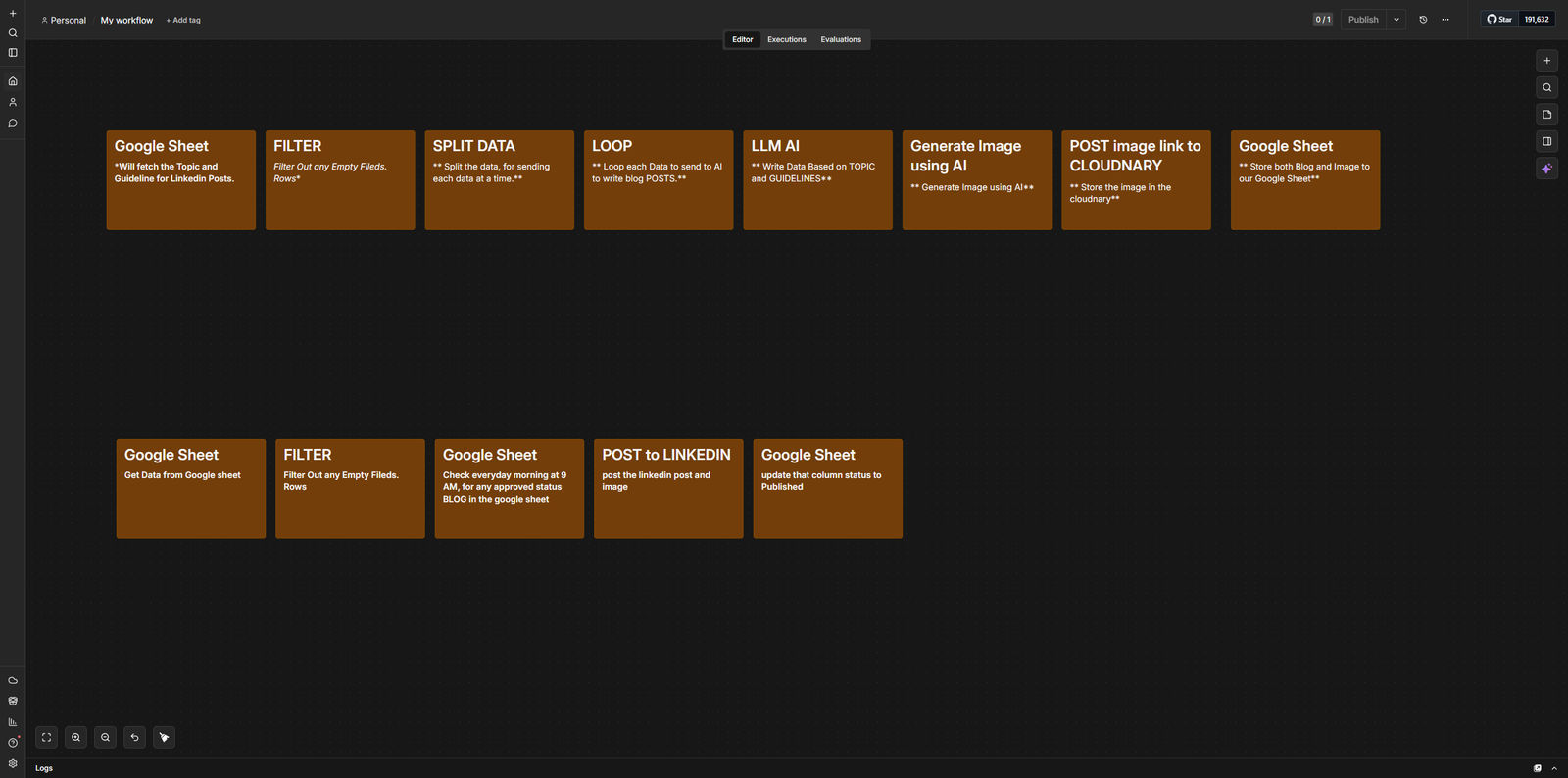
Before building anything in n8n, map the entire flow using sticky notes.
This sounds like extra work. It isn't.
Every sticky note in the screenshot above represents one node. The labels tell you exactly what each step does: "Fetch topic and guideline from Google Sheet", "Filter out empty rows", "Loop each item to AI", and so on. When you sit down to build, you're not designing, you're executing.
Here's why this matters for beginners specifically. n8n lets you add nodes in any order. Without a plan, it's easy to build yourself into a corner, realise your data structure is wrong three steps in, and start over. Sticky notes cost nothing to rearrange.
The planning image shows two distinct rows of notes, one for the generation workflow and one for the publishing workflow. Keeping them visually separate from the start prevents them from becoming one tangled mess later.
Practical rule: Before you open the n8n editor, draw it out. Even on paper. Know exactly what each step is doing before you build it.
Step 2: The Generation Workflow
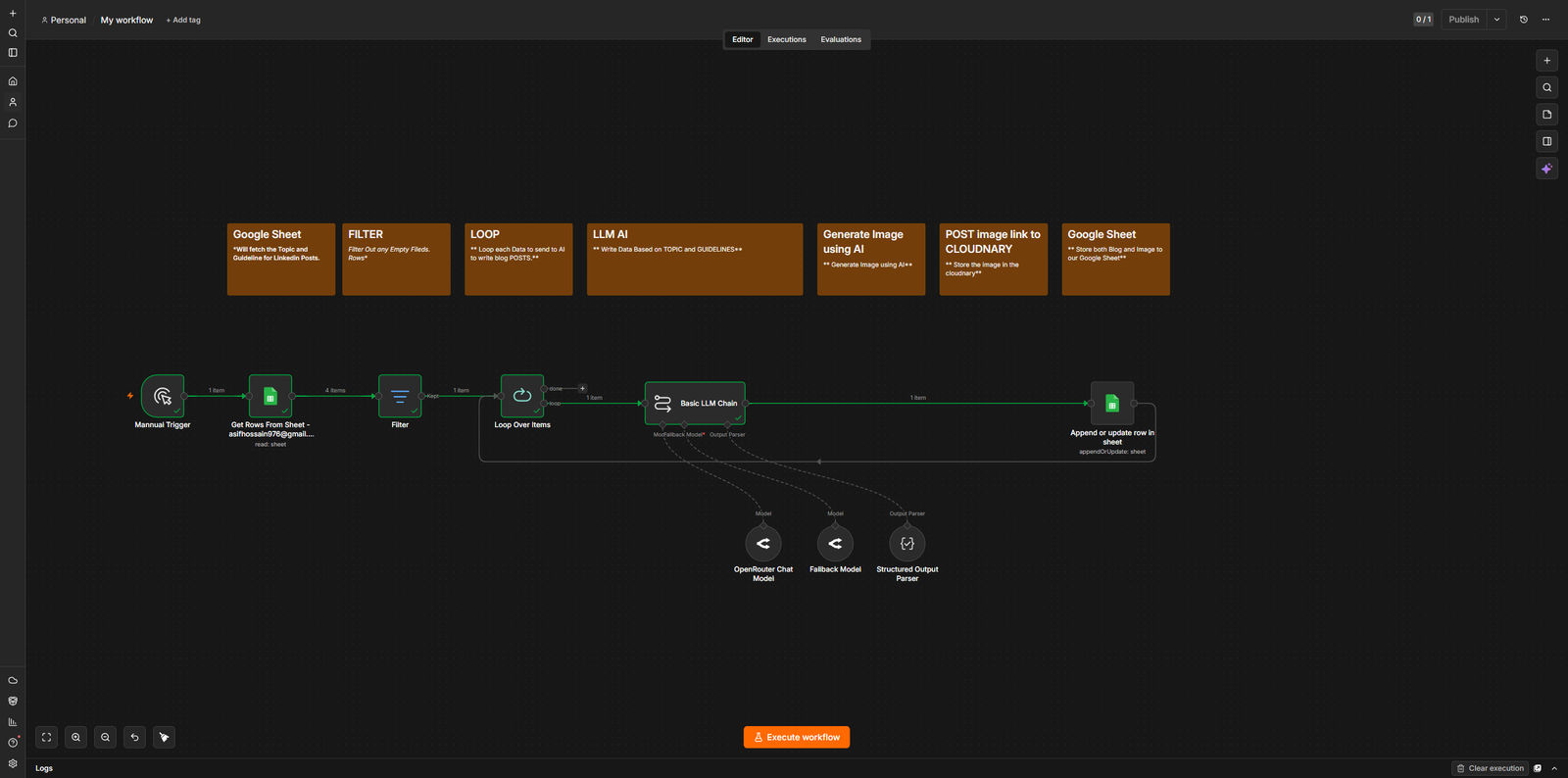
Google Sheets - Fetch Topics
The workflow starts by pulling rows from a Google Sheet. Each row has two columns that matter: Topic (what the post is about) and Guideline (the tone, format, or specific instructions for that post).
This is your content calendar. You write the brief in the sheet, the workflow handles the rest.
Filter - Remove Empty Rows
Before looping, filter out any rows where Topic or Guideline is empty. Without this, the AI node will error or produce junk output for blank rows. One filter node, done.
Loop Over Items
This is where n8n processes each row individually. The Loop Over Items node sends one row at a time through the rest of the flow. Without it, your AI node would receive all rows simultaneously and return one merged output, not what you want.
Think of it as: for each topic, do all the following steps.
LLM AI via OpenRouter - Write the Post
Here's where it gets interesting. Most tutorials tell you to grab an API key from OpenAI, another from Anthropic, another from Mistral. That's three dashboards, three billing accounts, three sets of credentials to manage.
OpenRouter solves this. It's a single API that gives you access to dozens of models, GPT-4o, Claude, Llama, Mistral, Gemini, through one endpoint. One API key. One node.
In n8n, you set up a Basic LLM Chain node and connect OpenRouter as the model provider. The node takes the Topic and Guideline from your Google Sheet row and passes them to whichever model you've selected.
Why this matters: If GPT-4o suddenly becomes expensive or changes its output quality, you switch models in one dropdown. No new credentials, no reconfiguring nodes. If you want to go a step further and build custom AI features directly into a product rather than just a workflow, I covered that in building AI-powered web apps with Next.js and the Claude API.
Structured Output Parser - Get Consistent Results
This is the step most beginners skip, and it causes a lot of headaches.
Without structured output, your AI returns a blob of text. Sometimes it adds an introduction. Sometimes it changes the format. Sometimes it wraps the post in quotes. Every response is slightly different, which means your downstream nodes, the ones that store the data back to Google Sheets, can't reliably read the fields.
With a Structured Output Parser, you define exactly what shape the response should take. For this workflow, that means telling the model: return a JSON object with a post field and an image_prompt field. Nothing else.
Now every response is predictable. Your Google Sheets node knows exactly where to find the post content and exactly where to find the image prompt. No regex. No string manipulation. Just clean data.
Set up your structured output like this:
{ "post": "The LinkedIn post text here", "image_prompt": "A description of the image to generate" }
Tell the model in your system prompt: "Return only valid JSON matching this schema. No preamble, no explanation."
Generate Image - AI Image Generation
The image_prompt field from your structured output goes to an image generation node. The resulting image gets uploaded to Cloudinary, which gives you a public URL.
Why Cloudinary? LinkedIn's API requires a publicly accessible image URL when posting. Cloudinary stores it and gives you that URL reliably. The URL then gets stored back in your Google Sheet alongside the draft post.
Append to Google Sheet - Save the Draft
The final node writes back to the sheet: the generated post, the image URL, and a Status of "Draft". This is your review queue.
Before anything goes to LinkedIn, you read it. If it's good, you change the Status to "Approved" and add a date to the Schedule column.
Step 3: The Publishing Workflow
Schedule Trigger - 9 AM Daily
A cron trigger fires every morning at 9 AM. That's all this node does.
Google Sheets - Fetch Approved Posts
Pull all rows where Status is "Approved". This gives you every post that's been reviewed and cleared.
Filter - Check Schedule Date
Filter the approved rows to find only the ones where the Schedule date matches today. If no rows match, the workflow ends here. Nothing gets posted.
If / Branch Logic
A conditional check handles edge cases, empty fields, missing images, anything that would cause the LinkedIn post to fail. Posts that pass go forward. Posts that don't get flagged or skipped depending on how you configure it.
Upload Post (Community Node) - Post to LinkedIn
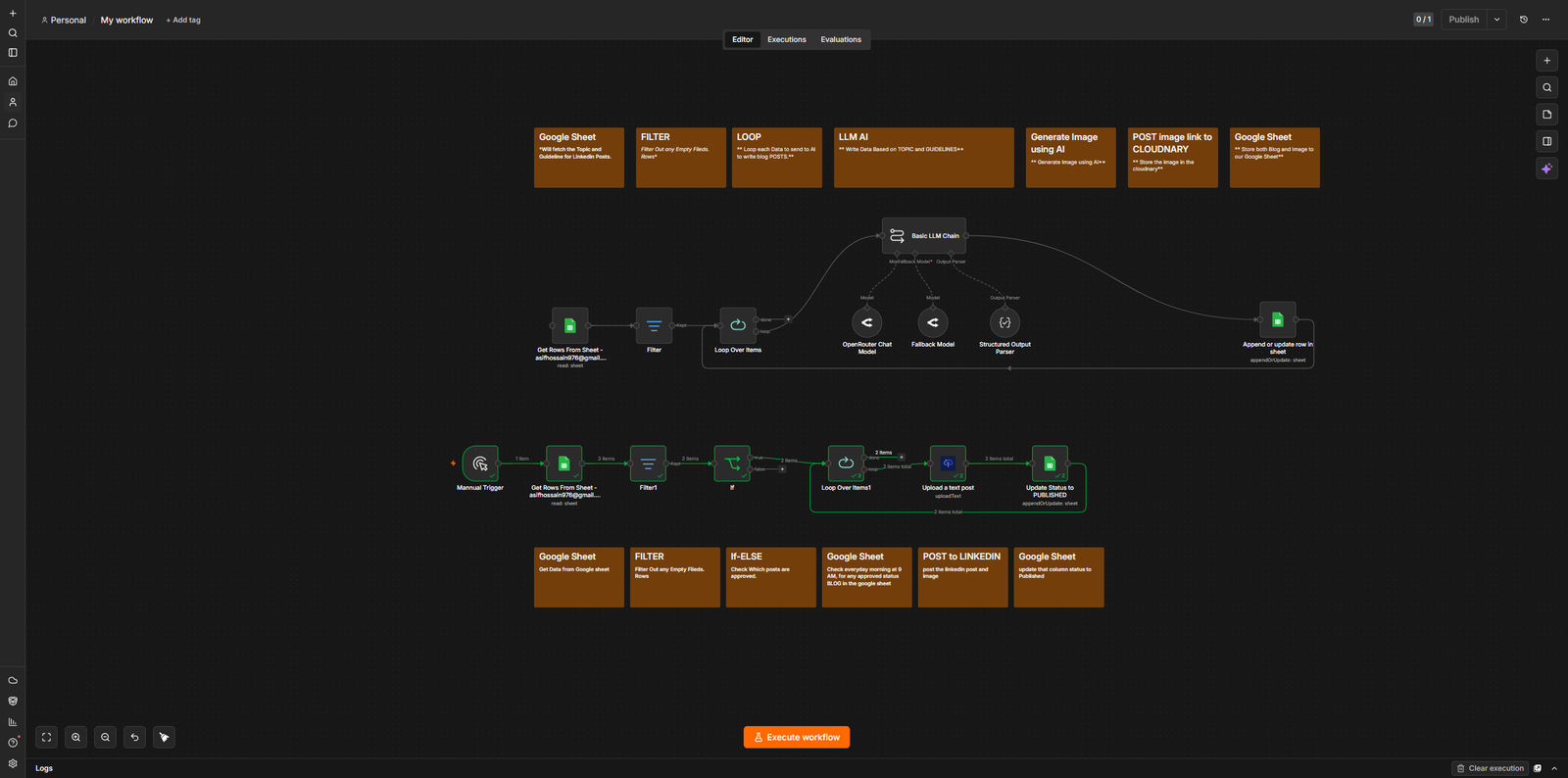
This is the part that usually trips people up. LinkedIn's API requires OAuth authentication, and setting it up directly is genuinely annoying. You need to register an app, request the right permission scopes, and handle token refresh.
The Upload Post community node handles all of that. It supports LinkedIn, Twitter/X, Instagram, and others from a single node. You authenticate once through the node's built-in OAuth flow, and that's it.
What's a community node?
n8n has two types of nodes. Core nodes are built and maintained by the n8n team, things like Google Sheets, HTTP Request, and Slack. Community nodes are built by developers in the n8n community and published to npm. You install them separately.
To install a community node in n8n:
- Go to Settings > Community Nodes
- Search for the node package name
- Install it
- The node appears in your editor
Community nodes are not officially supported by n8n, which means quality varies. Some are well-maintained, some aren't. Check the npm download count and when it was last updated before you rely on one for production. For social media posting, Upload Post has been reliable.
The practical benefit here is the same as OpenRouter: one node, multiple platforms, no separate API credentials for each one.
Update Google Sheet - Mark as Published
After a successful post, update the Status column to "Published". This prevents the same post from going out again tomorrow when the schedule trigger fires.
The Full Picture
Two workflows. One for creating content with human review built in. One for publishing on a schedule.
The Google Sheet acts as the bridge between them, it's where drafts live, where you approve posts, where the publishing workflow finds its queue. You could manage this whole system from your phone if you wanted to. Open the sheet, change a status to "Approved", add a date, done.
- n8n is free if you self-host.
- OpenRouter charges per token, running a few posts a day is cents.
- Cloudinary has a generous free tier.
- The Upload Post community node is free.
Things I'd Do Differently Next Time
The fallback model in the generation workflow, if your primary model fails or is slow, it routes to a backup. I added this after one evening where the primary model was having issues and the whole workflow silently failed. Build the fallback in from the start.
Also, add an error workflow from day one. n8n lets you attach an error handler to any workflow. When something breaks, it can ping you on Slack or email rather than failing quietly. I didn't set this up early enough and missed a few posts because of it.
This kind of reliability work, fallback models, error handling, alerting, is exactly what separates a weekend project from something you can trust to run unattended. It's a core part of how I scope n8n automation projects and AI integration work for clients.
Summary
| Step | Node | What It Does |
|---|---|---|
| Fetch topics | Google Sheets | Pulls content brief from your sheet |
| Clean data | Filter | Removes empty rows |
| Process each row | Loop Over Items | One item at a time through AI |
| Generate post | LLM via OpenRouter | Writes the post using your chosen model |
| Structure output | Structured Output Parser | Returns clean JSON every time |
| Create image | Image AI | Generates image from prompt |
| Store draft | Google Sheets | Saves draft with status Draft |
| Schedule check | Cron Trigger | Fires at 9 AM daily |
| Find approved | Google Sheets + Filter | Finds posts ready to publish |
| Post to LinkedIn | Upload Post (community) | Single node for multiple platforms |
| Update status | Google Sheets | Marks post as Published |
If you build this and run into issues with the structured output parsing or the community node setup, the n8n community forum is worth checking, most edge cases have already been solved there.
Bonus: 3 n8n Tips That Took Me Too Long to Find
While building this, I picked up a few small habits that made the whole process much smoother. None of these are hidden, they're just not obvious until someone points them out.
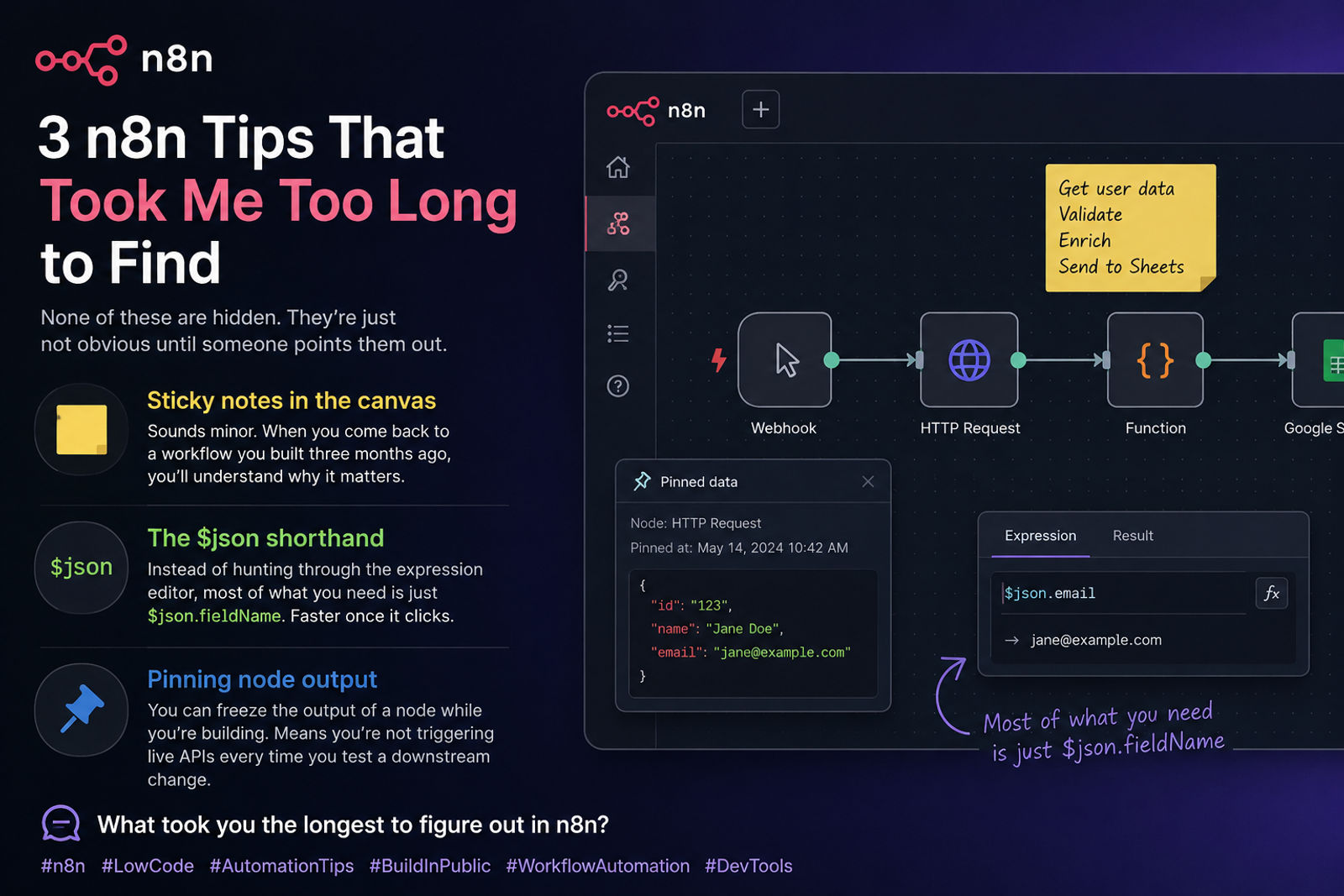
1. Sticky notes in the canvas
Sounds minor. When you come back to a workflow you built three months ago, you'll understand why it matters.
2. The $json shorthand
Instead of hunting through the expression editor, most of what you need is just $json.fieldName. Faster once it clicks.
3. Pinning node output
You can freeze the output of a node while you're building. That means you're not triggering live APIs every time you test a downstream change, which saves both time and OpenRouter credits.
Frequently Asked Questions
Is n8n free to use?
Yes. n8n is open-source and free if you self-host it on your own server. There is also a paid n8n Cloud tier if you would rather not manage hosting yourself. For this build, self-hosting keeps the whole system free apart from OpenRouter token costs.
Why use OpenRouter instead of calling OpenAI or Anthropic directly?
OpenRouter gives you dozens of models, GPT-4o, Claude, Llama, Mistral, Gemini, through one API key and one node. If a model gets expensive or its quality drops, you switch in a single dropdown with no new credentials and no reconfigured nodes.
What is a community node in n8n?
Community nodes are built by developers in the n8n community and published to npm, not maintained by the n8n team. You install them under Settings, Community Nodes. They unlock integrations like Upload Post, but quality varies, so check npm downloads and last-updated date first.
Do I need to know how to code to build this?
No. The whole system is built by connecting nodes visually in the n8n editor. The only structured part is defining a JSON shape for the AI output, and that is copy-paste. Planning each step with sticky notes first matters more than coding ability.
What Are You Automating With n8n?
If you're building something similar and want a second pair of eyes, or want this kind of system built and maintained for you end to end, take a look at my n8n workflow automation services or get in touch. I'm an Australian full-stack developer, and this is the kind of project I genuinely enjoy building.
Asif Hossain is a full-stack developer based in Australia, building Next.js web apps and n8n automation systems for clients across Australia. This walkthrough is based on a system I built and run for my own LinkedIn posting.
n8n Workflow Automation Australia
Automate repetitive business processes and save hours every week with n8n